
Introduction
ArgoCD is a continuous delivery tool that implements GitOps. It enables the automated deployment and synchronization of the application manifest from Git repository to our Kubernetes cluster. ArgoCD ensures the consistency and reduces manual intervention.
While ArgoCD is cloud-agnostic and can be deployed for any Kubernetes cluster, we will deploy it on AWS Elastic Kubernetes Service (EKS) in this guide. AWS EKS is a fully managed Kubernetes service which simplifies cluster operations and provides seamless integration with AWS infrastructure.
Prerequisites
- EKS Cluster
- kubectl
- helm
- kubeconfig
- Git Repository
Implementation
Deploy ArgoCD to EKS
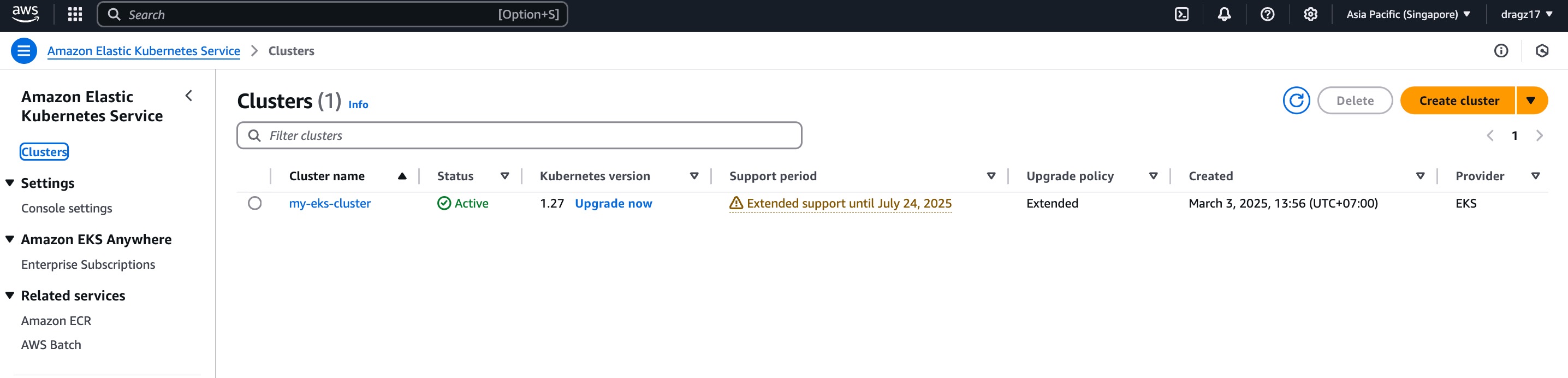
To Deploy ArgoCD to EKS, we need to execute these commands:
$ kubectl create namespace argocd$ helm repo add argo https://argoproj.github.io/argo-helm$ helm install argocd argo/argo-cd -n argocd
It will create the namespace argocd, add the helm repository to our local, then deploy ArgoCD to our Kubernetes cluster, and specific to the argocd namespace.
SignIn to ArgoCD
We need to retrieve the ArgoCD password first, with this command:
$ kubectl -n argocd get secret argocd-initial-admin-secret -o jsonpath="{.data.password}" | base64 -d
It returns the password [REDACTED] of ArgoCD.
Since we are not open the connections publicly, we can directly use port-forwarding to ArgoCD service, by this command:
$ kubectl port-forward svc/argocd-server -n argocd 8080:(80|443)
You can choose to use port 80 or 443 of argocd-server service, since it automatically redirects to HTTPS.
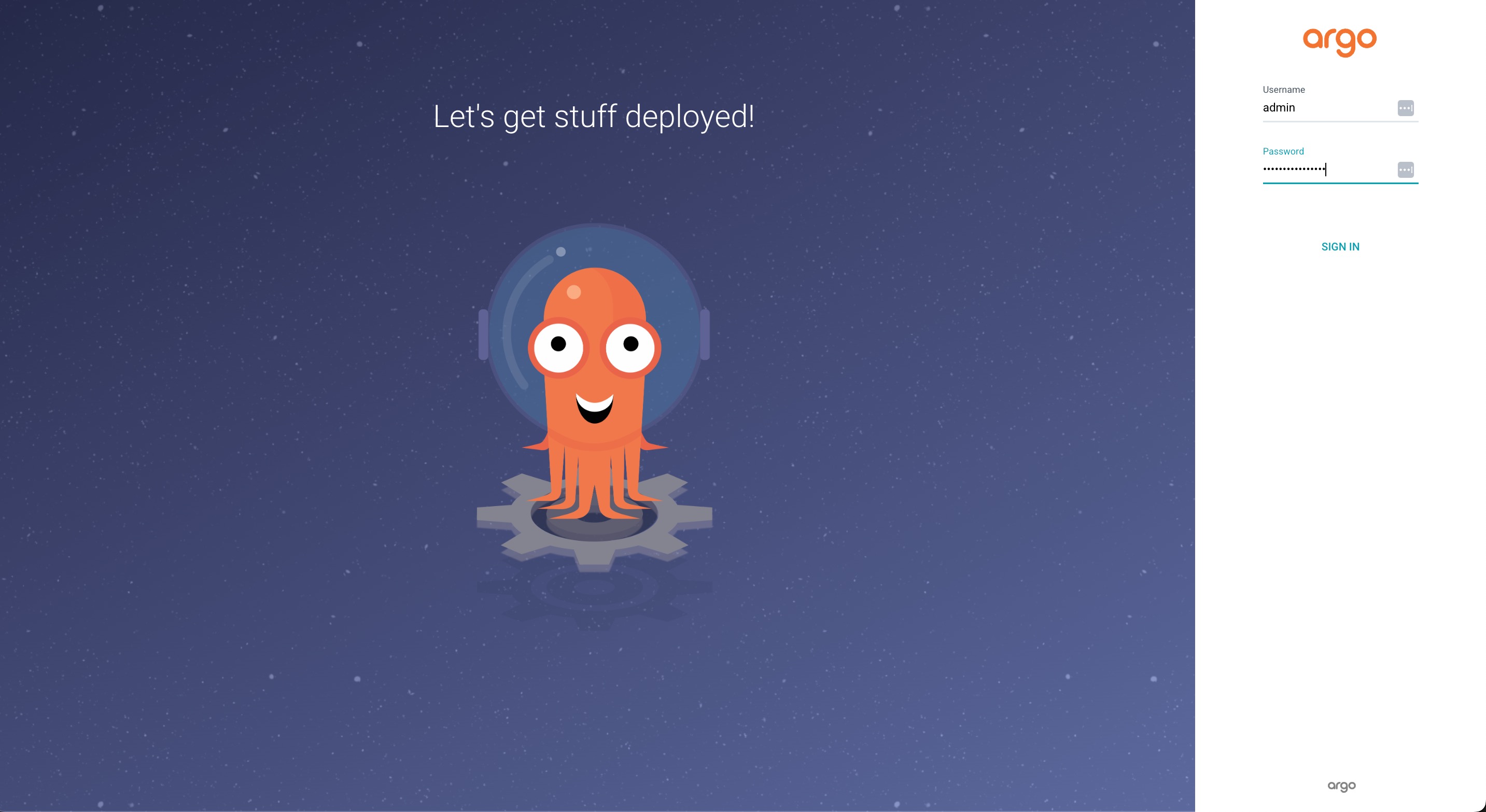
After that, we can access ArgoCD from localhost:8080, fill the username with admin, and password with [REDACTED].
Applications Manifest
Since we have git repository, we need to add the applications manifest. Later, it will continuously syncs to our Kubernetes resources from Git.
Single Environment Deployment
For single deployment, we just need to create file structure like this on our repository.
| . ├── application.yaml └── manifest ├── deployment.yaml ├── ingress.yaml └── service.yaml |
File application.yaml will define ArgoCD application resource, so that we don’t manually fill it from ArgoCD service. Directory manifest/* will contain Kubernetes YAML files for deployment, service, and ingress.
You can follow the references like these:
| apiVersion: argoproj.io/v1alpha1 kind: Application metadata: name: my-app namespace: argocd spec: project: default source: repoURL: ‘<YOUR MANIFEST REPO>’ targetRevision: HEAD path: manifest destination: server: https://kubernetes.default.svc namespace: default syncPolicy: automated: prune: true selfHeal: true |
| apiVersion: apps/v1 kind: Deployment metadata: name: welcome-app labels: app: welcome spec: replicas: 2 selector: matchLabels: app: welcome template: metadata: labels: app: welcome spec: containers: – name: welcome image: <IMAGE REPO> ports: – containerPort: 5000 env: – name: DOCKER_USERNAME valueFrom: secretKeyRef: name: welcome-secret key: DOCKER_USERNAME – name: DOCKER_PASSWORD valueFrom: secretKeyRef: name: welcome-secret key: DOCKER_PASSWORD |
| apiVersion: v1 kind: Service metadata: name: welcome-service spec: selector: app: welcome ports: – protocol: TCP port: 5000 targetPort: 5000 type: ClusterIP |
| apiVersion: networking.k8s.io/v1 kind: Ingress metadata: name: welcome-ingress annotations: nginx.ingress.kubernetes.io/force-ssl-redirect: “true” nginx.ingress.kubernetes.io/rewrite-target: /$1 spec: ingressClassName: nginx tls: – hosts: – welcome.local secretName: welcome-tls rules: – host: welcome.local http: paths: – path: /(.*) pathType: Prefix backend: service: name: welcome-service port: number: 5000 |
To add our application on ArgoCD, just directly execute this command.
$ kubectl apply -f application.yaml
The application’s backend will be exposed to port 5000, and we can access the service with port-forwarding, by this command:
$ kubectl port-forward svc/welcome-service 5001:5000
Multi Environment Deployment
In Best practice, we usually split the environment like staging, testing, …, and production. In this guide, we are going to use 3 environments (staging, testing, and production).
| . ├── application-staging.yaml ├── application-testing.yaml ├── application.yaml └── manifest ├── base ├── deployment.yaml ├── ingress.yaml ├── kustomization.yaml └── service.yaml ├── production ├── deployment-patch.yaml └── kustomization.yaml ├── staging ├── deployment-patch.yaml └── kustomization.yaml └── testing ├── deployment-patch.yaml └── kustomization.yaml |
You can split the file of application YAML for ArgoCD app definition. Just use application-(environment).yaml. You can set the manifest path specifically to the environment.
In addition to, we use Kustomization to manage and customize the application configurations without modifying the original YAML file.
We create a directory base/* filled by deployment, ingress, and service file. It’s for the base or template of our configuration.
Then, we can create an overlay folder (staging, testing, production) if we want to overwrite or add specific configuration for an environment.
If the configurations have been completed and pushed to our repository, then execute by these commands:
$ kubectl apply -f application-staging.yaml
$ kubectl apply -f application-testing.yaml
$ kubectl apply -f application.yaml
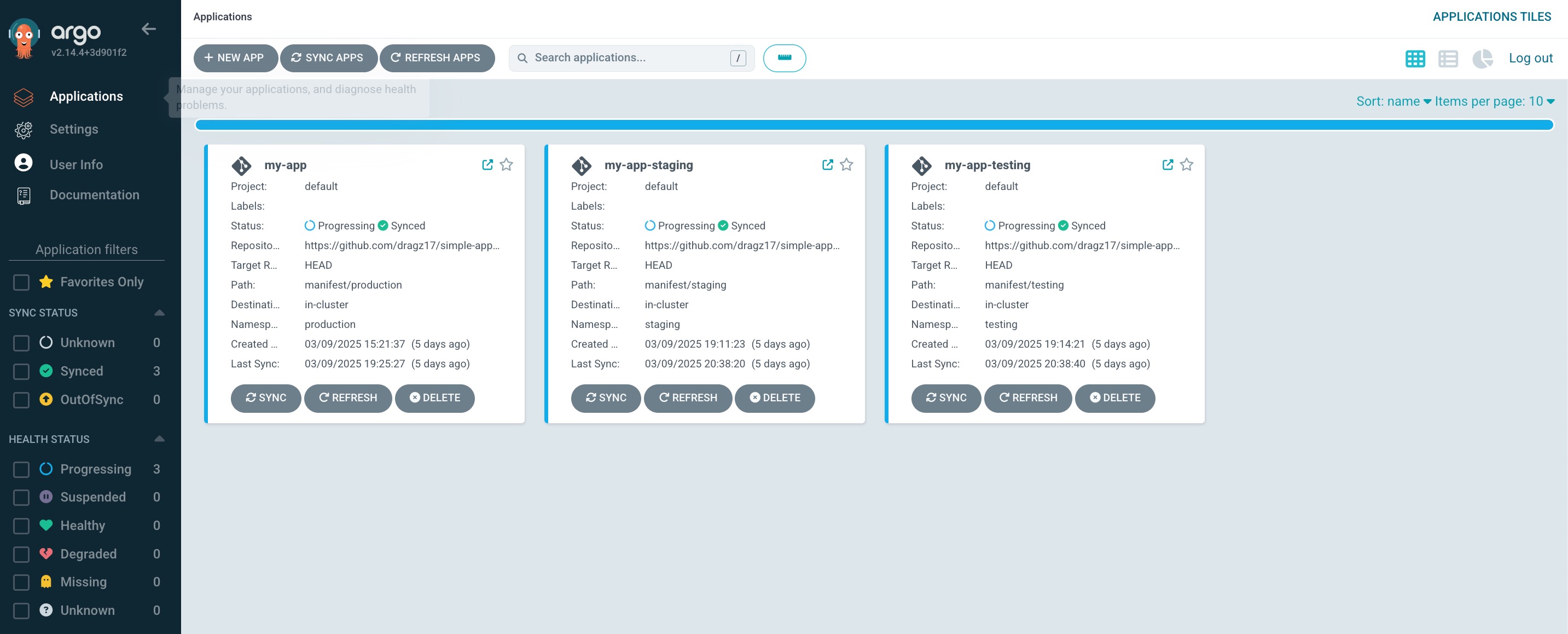
For the repository reference, can see more detail in simple-app-manifest.
Result
1) Deployment on Staging
$ kubectl port-forward service/welcome-service -n staging 6002:5000
$ curl http://localhost:6002/welcome/Boy
or access directly from website
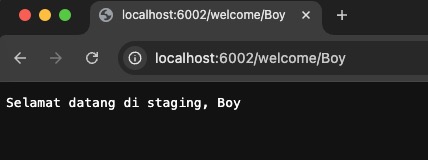
It returns Selamat datang di staging, Boy.
2) Deployment on Testing
$ kubectl port-forward service/welcome-service -n testing 6003:5000
$ curl http://localhost:6003/welcome/Boy
or access directly from website
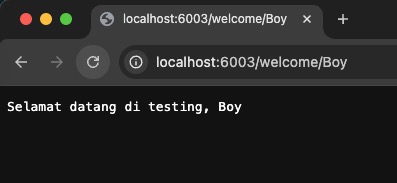
It returns Selamat datang di testing, Boy.
3) Deployment on Production
$ kubectl port-forward service/welcome-service -n production 6004:5000
$ curl http://localhost:6004/welcome/Boy
or access directly from website
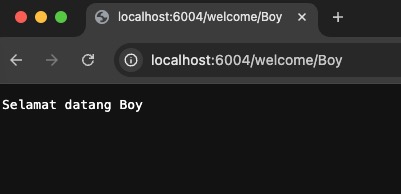
It returns Selamat datang Boy.
Hopefully the guide is useful!
Notes:
- issue on node-worker, check the healthcheck, autoscaling group, networking including route table.
- issue on image pull, check the secret on the namespace.
References
- https://argo-cd.readthedocs.io/en/stable/
- https://docs.aws.amazon.com/eks/latest/userguide/what-is-eks.html

